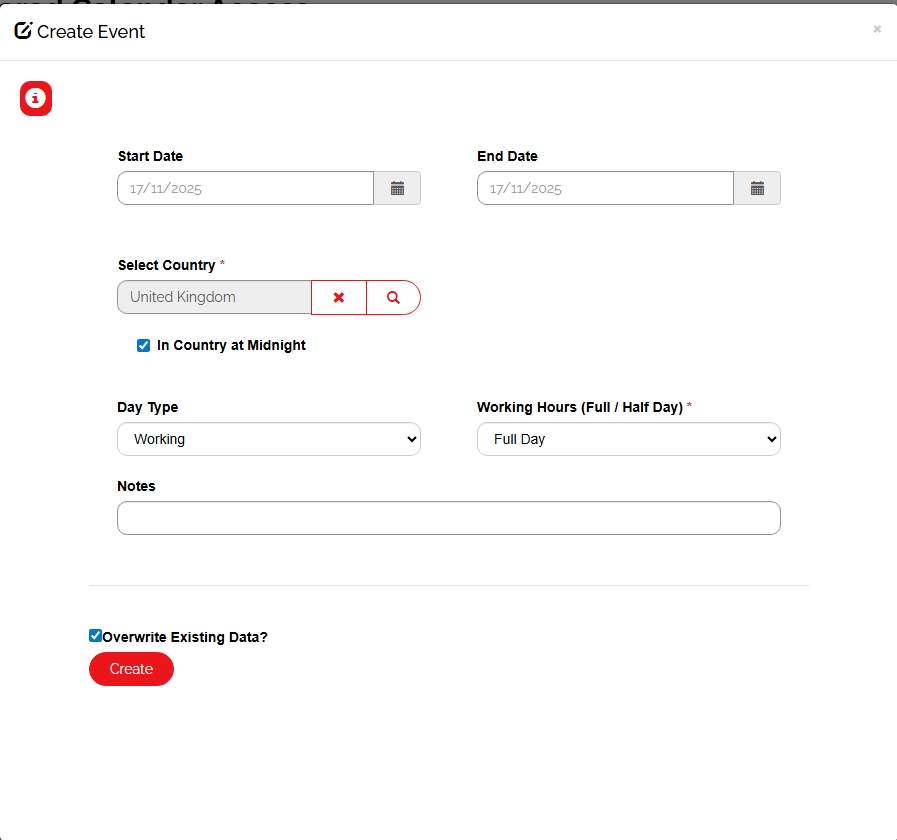
Usage Notes
The Practice Gateway Calendar has been enabled for contacts with the Personal Tax User and US Tax User web roles. These contacts can be created through the contact request form by assigning the owning team as either Standard Clients or US Tax.
Model Driven App
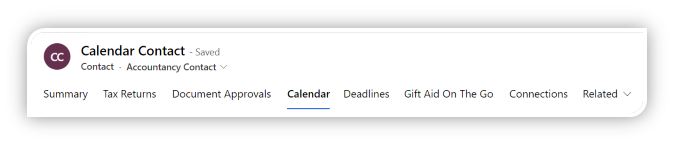
- In the Accountancy Contact form and US Tax Contact form a Calendar tab has been added.
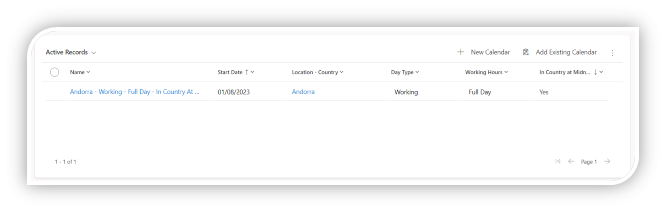
- Records that are still active and a Client can still make changes to will be displayed under the Active Records view
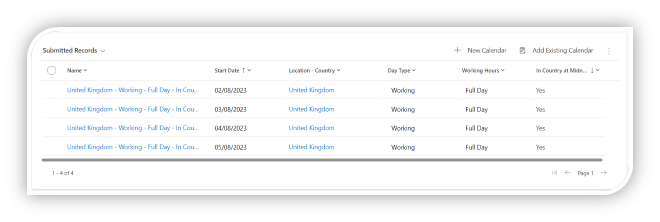
- Records that a client has submitted are available under the Submitted Records view. Submitted records are locked on the Practice gateway portal, so a client is unable to make further changes or remove the record.
Portal
- On the Practice Gateway Portal, the link to the Calendar page has been added to the navigation banner for Personal Tax & US Tax Contacts
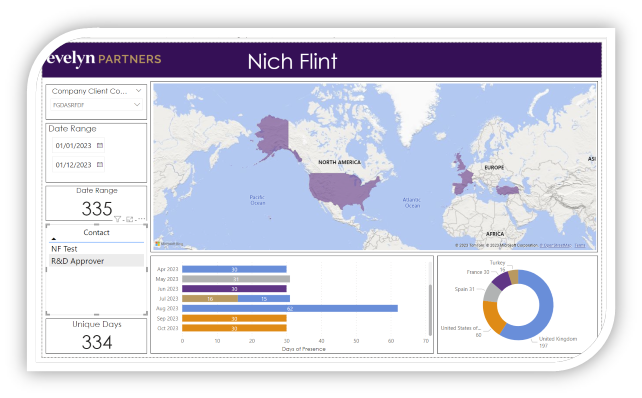
 2. A Power BI Report displaying the data for the logged in Clients calendar is displayed on the home page.
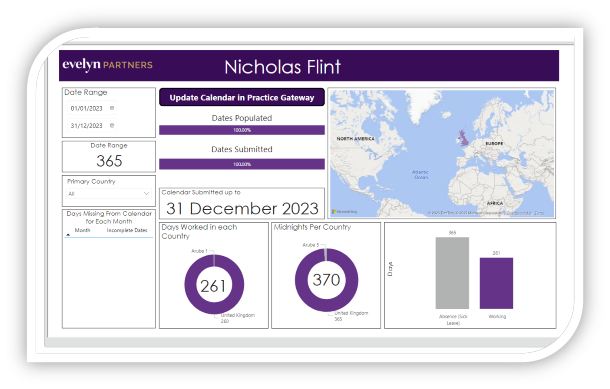
-
The logged in client can click on the “Update Calendar in Practice Gateway” button on the Power BI report, to be taken to their calendar.
-
The Client will be presented with a blank calendar which will be open on the current month.
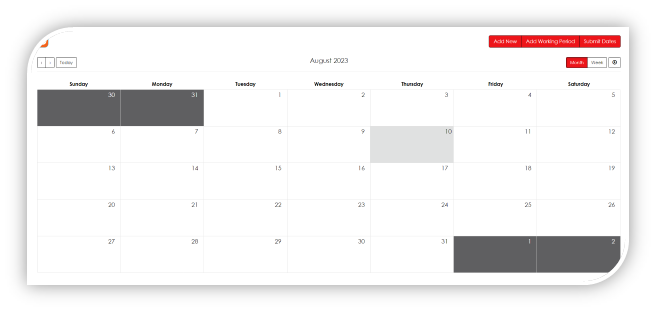
Set a Working Pattern
A client can set their working pattern for an extended period of time, this could be for one month, or for a whole year. This allows them to specify their normal working pattern and primary country of residence for that time. They are then able modify the records on each day where the information changes.

To set a working pattern, a client will specify the date range they want to create. Selecting the days that they typically work, how long throughout the working day that they work for. And the country in which they will be for that period of time.
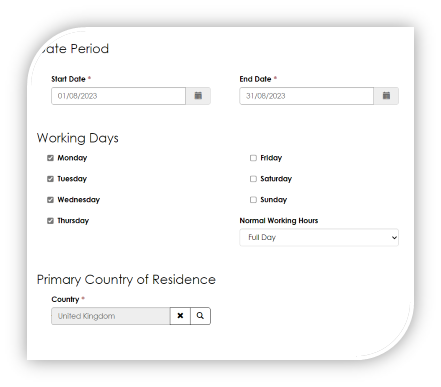
After the client submits the working pattern, the page will reload showing the updated calendar.
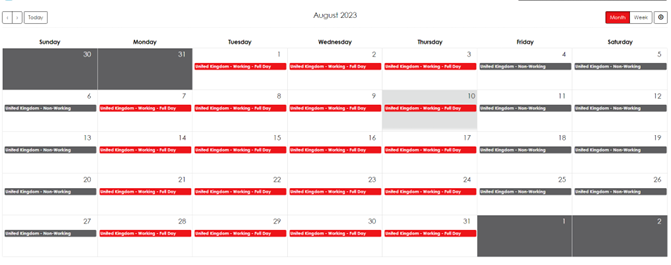
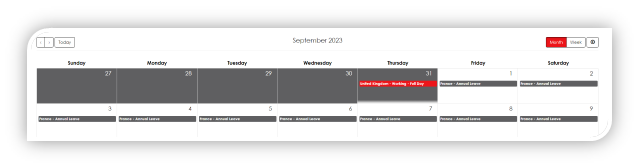
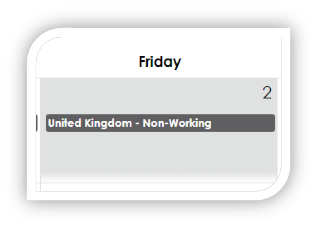
Records are colour coded according to whether the data entry was for a Working day or any other type. i.e. absence (sick leave) or annual leave. Allowing the client to easily see if they have made a mistake about whether they have accidently marked a day as working when they were not.
Adding Records for One or more days
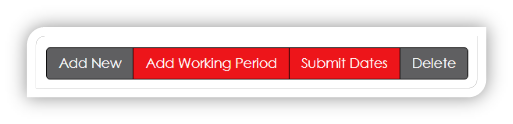
To create a record for one or more days a client has 2 options, selecting the Add New button, or selecting a specific date on the calendar.

If a client selects the Add New button, but date range will default to the current date. However, if the client selects a specific date on the calendar, the date range will default to the selected date. In both cases the client is able to modify the date range.
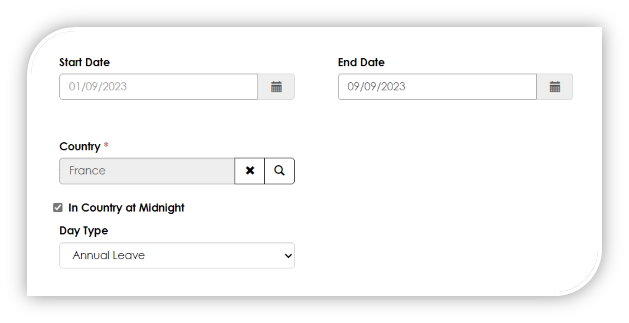
After the client submits the records they want to create, the page will reload displaying the new records.
Other Types
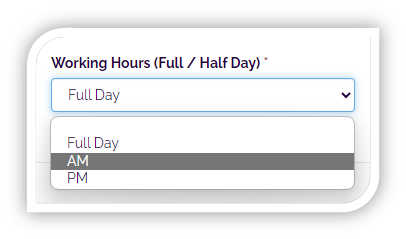
Working – Indicates a date that the contact was working
- The Working Day Type can then be segmented into the number of working hours completed for the day(s). Thise includes Full Day, AM and PM.
- Non-Working – Indicates a date that the contact was not working
- Absence (Sick Leave) – Indicates a working date, where the contact did not work due to sickness.
- Annual Leave – Indicates a working date, where the contact did not work as they were on annual leave.
- Travelling – Indicates that the Contact was travelling on that date. The client is also required to enter any travel details, including flight times.
- Maternity Leave – Indicates a working date, where the contact did not work due to Maternity Leave.
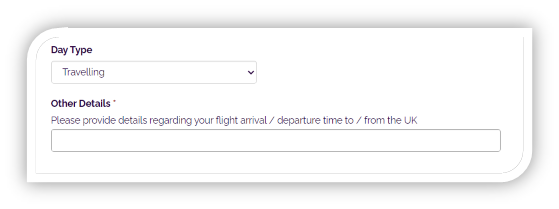
- Other – Allows the contact to provide any additional information
Submitting Records to their Tax Advisor
Once the client has completed entering the data, they are able to submit the data and send it to their Tax Advisor.

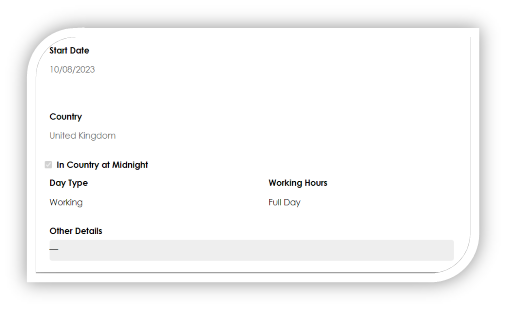
In order to submit the data for a day, they will need one record which indicates their location at midnight on that day. This is important as a client could start the day at one country and end the day at another.
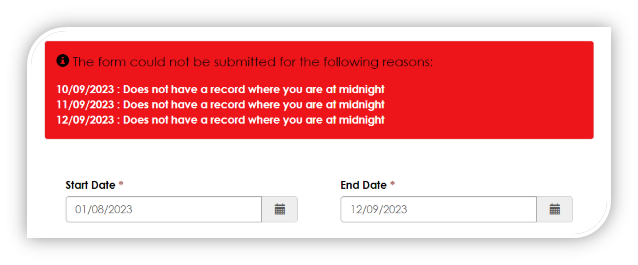
If the client selects a date range which is missing data, they will not be able to select the data for that range. They will have two options:
- Change the date range to dates which are completed.
- Enter the data into the missing dates and then submit the records.
Once the client has submitted data for a range of days, the records are still available so they can view the details. But they will be unable to edit or remove the records.
Updated Power BI Report
When a contact updates their calendar, either creating a new entry, or submitting the data to their advisor. The Power BI report is updated.
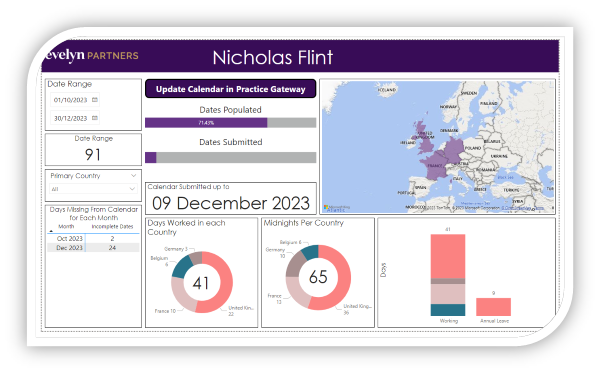
User View of Power BI Report
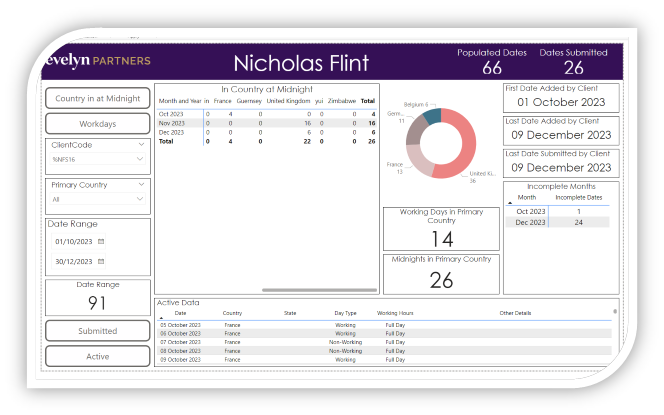
Governance View
Deletion Update
A step-by-step guide of how to use the feature in the Practice Gateway Portal including screenshots.
Log into Practice Gateway Portal with a Calendar Contact
- This is either a US Tax Contact, an Ireland Tax Contact or a UK Tax Contact who’s Tax Returns have residency questions enabled.
Add new records
- This can be done by either selecting on a specific date and then setting the details of the records
- This can also be done by selecting the Add new button.
Using both methods will not create any duplicate records. Or create records for dates that already have submitted data.
A Contact is not able to create more than one of the following Day Types for a particular date.
- Non-Working, Annual Leave, Absence (Sick leave)
A contact is able to create multiple ‘Other’ and ‘Travel’ records on a single date.
Add Working Periods
- This allows a contact to set a working pattern for a period.
This will not create duplicate records or create records for dates that already have submitted data.
Additionally, this will not allow more than one days’ worth of Working Hours. i.e. One Full Day record or One AM and PM record.
Delete
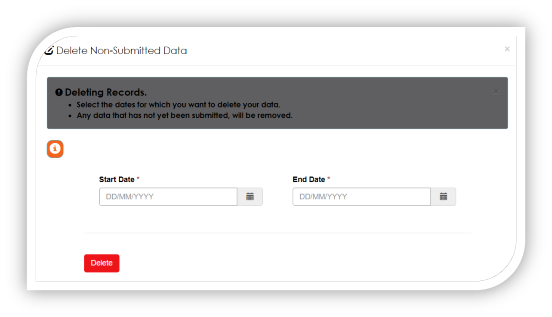
- This allows a contact to delete non-submitted data in a particular range.
Submission
- This allows a contact to submit their own calendar records.
- A contact is not able to submit calendar records on behalf of another contact, even where a Data Approver permission has been granted.
- The submission button will be displayed if any date on the calendar contains only partial data, ensuring that a contact cannot accidently submit partial data.
Overwrite Existing Data
The Add new and Add Working Period forms have a new 'Overwrite Existing Data' field. When selected, it will delete all non-submitted data before adding new data.
If the data for that date has already been submitted, existing logic preventing new data from being added will be applied.